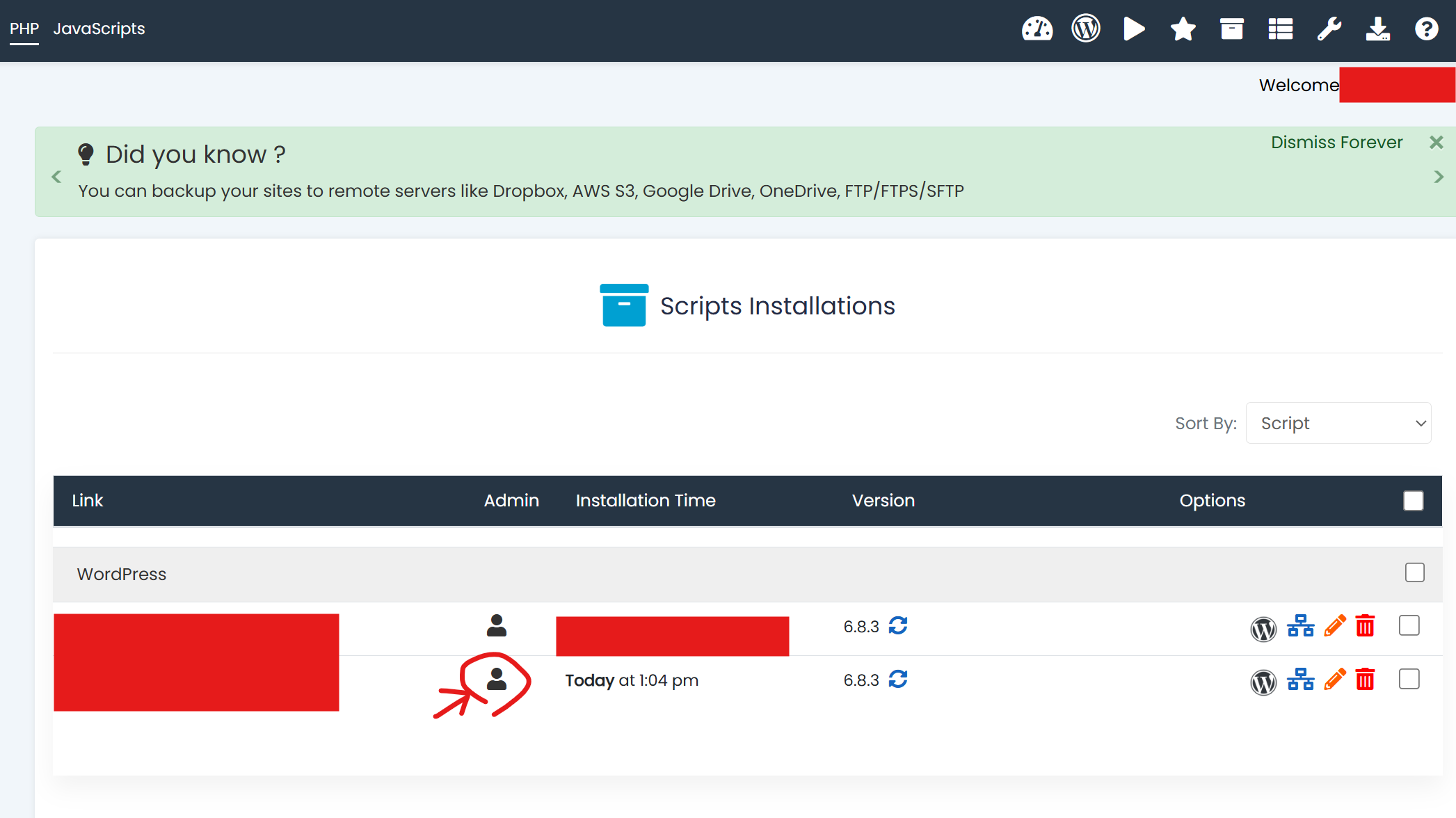
hello ,
i add my new domin in the cpanel and stil the old one is appear what is the steps to add the new domin in the wordpress i allready added in it but not worked
hello ,
i add my new domin in the cpanel and stil the old one is appear what is the steps to add the new domin in the wordpress i allready added in it but not worked
Hi, Welcome to the community!
When you add new domain in your hosting account as addon domain, it will appear in a sub-directory with the name of your added domain e.g: “htdocs/yourdomain.name”.
You need to install/transfer your wordpress website to that directory.
Hi there,
It looks like you have already added the website to addon domains.
The next step is to go to Wordpress Installer (or Softaculous Apps Installer from cPanel then Wordpress Installer), and install a fresh copy of Wordpress there. In case there is error 404, please try a fresh and latest install and make sure the nameservers are setup correctly in domain provider settings.
Welcome and thank you for your reply. Could you please guide me step-by-step on how to transfer the website?
After adding the new domain, I can’t access my WordPress account. It seems I need to transfer my WordPress site files from the old domain to the new one, but I don’t understand the steps. Please help me with this.
Log in to your Control Panel (cPanel).
Go to Addon Domains.
Enter your new domain name. Ensure your domain’s Nameservers are already pointed to the host (e.g., ns1.ezyro.com and ns2.ezyro.com)
Once added, the system creates a new folder in your file manager, usually named yourcustomdomain .com/htdocs/ .
Step 2: Move the Files
You need to move everything from the old folder to the new one.
Open the Online File Manager or connect via FileZilla.
Go to the folder of your old domain (usually just the root htdocs folder).
Select all files and folders (including wp-content, wp-admin, etc.).
Move (don’t just copy) them into the new folder: yourcustomdomain .com/ htdocs/ .
Step 3: Update the Database (The Most Important Part)
WordPress still thinks it belongs to the old URL. You must change this in the database.
In the Control Panel, open phpMyAdmin and Connect to your site’s database.
Find the table named wp_options (the prefix wp_ might vary).
Locate the rows siteurl and home.
Change the values from http://old-domain.com to http://your-new-domain.com.
HELLO, THANK YOU FOR YOUR REPLY I DID ALL THE STEPS BUT NOW I CANT LOGGIN IN MY WORDPRESS ADMIN ACOUNT A message appears (Installation files not found) What should I do to solve it? When I search for the new domain, the old one still appears on the search engine.
Hi there,
Try to clear your cache and then go to yourdomain.com/wp-admin
Alternatively, from cPanel, open Softaculous and then go to installations and click on the admin icon, that will take you directly to wp-admin account.
hi i change my domin name but when i search for the new domin still the old domin appear in the result how can i deelete the old domin
Are you talking about Google Search results?
Yes, when searching with the new domain, the old one still appears in search results.
Google may still show the old domain for some time due to indexing/cache. Hosting can’t remove it directly. The best solution is a 301 redirect old to new and then request re-indexing in Google Search Console (and optionally use Search Console “Removals”).
Could you please give me the steps for this?
Log in to your ProFreeHost Control Panel.
Open File Manager (or connect via FTP).
Go to the htdocs folder of the OLD subdomain (the domain that appears in Google).
Edit the file named .htaccess in that folder.
Paste this (replace with your new URL):
RewriteEngine On
RewriteCond %{HTTP_HOST} ^oldsubdomain\.yourdomain\.com$ [NC]
RewriteRule ^(.*)$ https://newsubdomain.yourdomain.com/$1 [R=301,L]
Save the file, then open the old subdomain in your browser to confirm it automatically forwards to the new one.
After this
A file named .htaccess in that folder shows a message saying “Cannot save file.” Does this mean I don’t have permission to save the file?
It seems you have already edited the htaccess file within the file manager, the other best way would be to set a redirect from vistapanel wherein your old site redirects the user to the new site.
where can i find the DNS configuration in the cpanel
where is this vistapanel
Hi there! To help you move forward quickly, VistaPanel is the main dashboard you land on right after logging into your hosting account and clicking cPanel.
While our support team focuses on the technical health of the servers and infrastructure, the dashboard is designed for self-service. You can find the ‘Redirects’ or ‘DNS Management’ icons right on that main screen. If you have trouble finding a specific button, a quick search in the panel’s search bar usually does the trick.
I don’t have permission to do that